

From a sentence to a schematic file
The file is named after your build and written from the same blocks you just turned around, so what you download is what you checked.
- 1
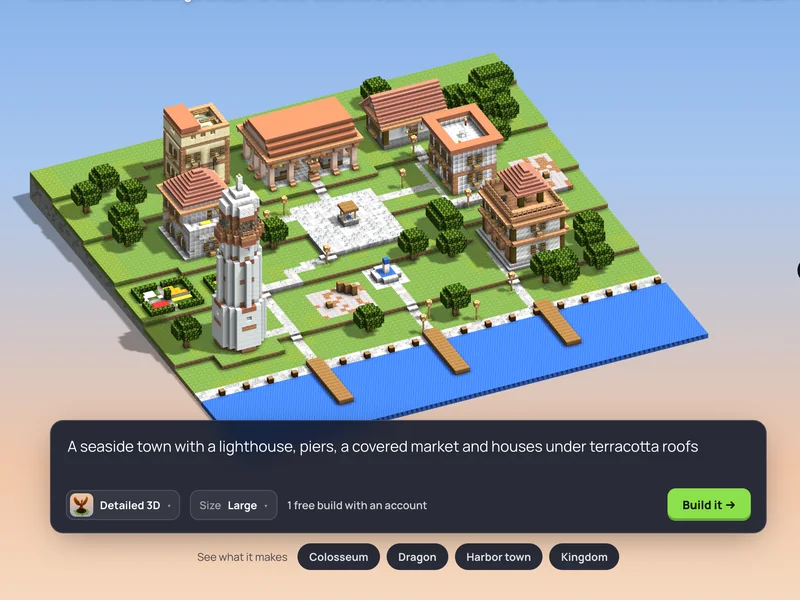 Write what you want built
A building, a statue or a whole place, in your own words. Name the materials and the style if they matter to you.
- 2
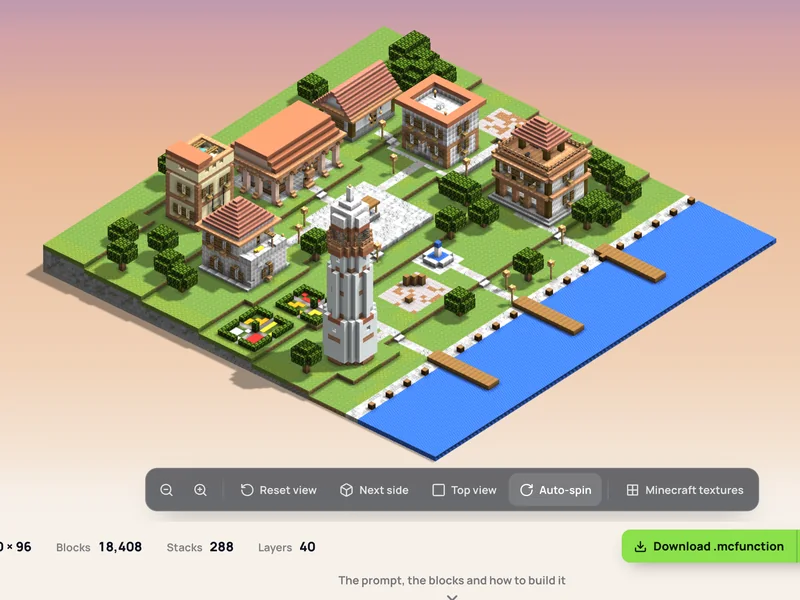 Look it over in 3D
Turn it, zoom in, and check it from every side before you take anything.
- 3
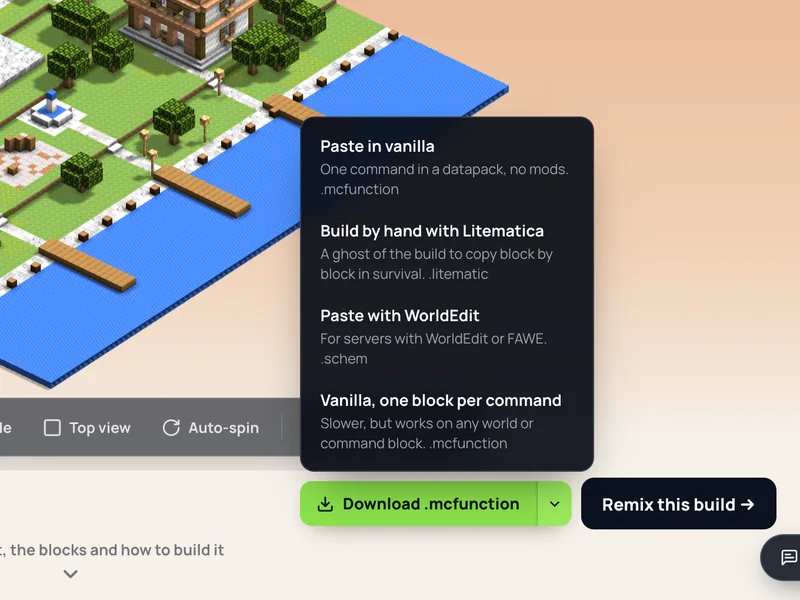 Download the schematic
Pick Litematica for the
.litematicor WorldEdit for the.schem, then load it in the game.
Two schematics from one build
Each build comes with a .litematic and a .schem holding the same blocks. This Minecraft schematic maker starts from a sentence, so there is nothing to draw or upload first.
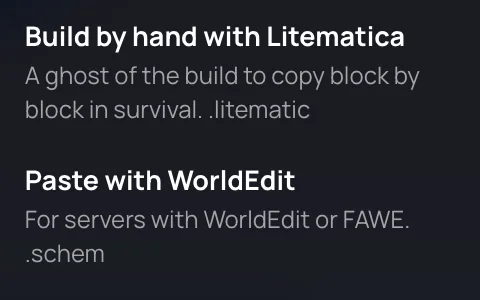
One file for each mod
Litematica shows the .litematic as a ghost to build along, block by block, in survival. WorldEdit and FAWE paste the .schem in one go. Both hold the same blocks, so you can change mods later without generating again.
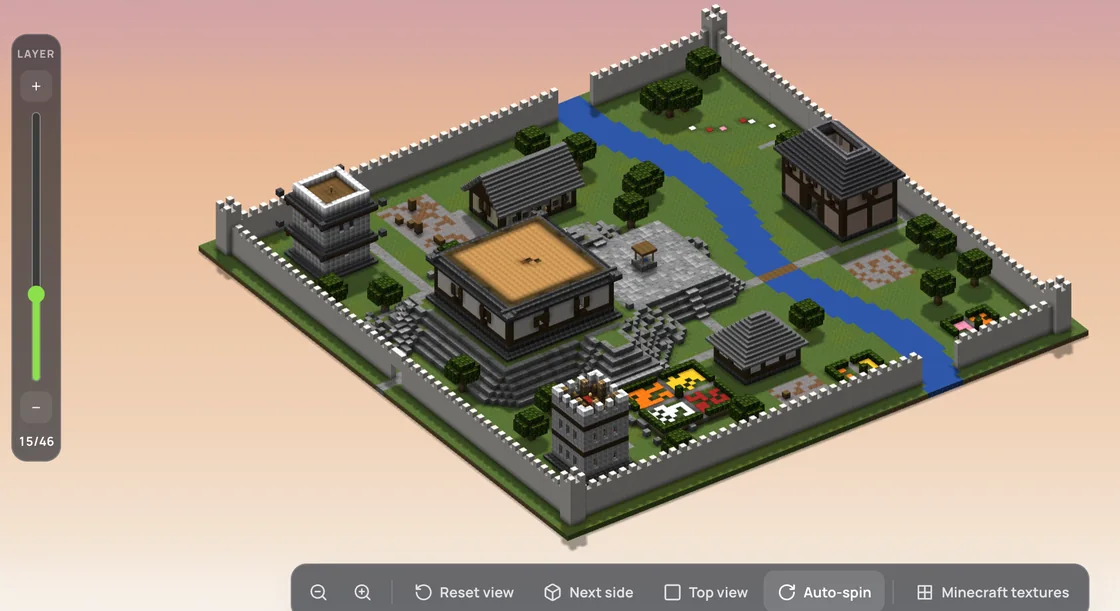
See inside before you download
Drag the layer bar down to cut the build at any height and look into each floor and room from above. If something is off, change the description and build again: no file exists until you press download.
Every format a build downloads as. The two .mcfunction files are for worlds without mods, which the build generator’s home page explains.
| File | Format | Opens with | What you do with it |
|---|---|---|---|
| .litematic | Litematica schematic, version 7 | Litematica | Shows as a ghost to build along, block by block |
| .schem | Sponge schematic, version 2 | WorldEdit, FAWE | Loaded into the clipboard, then pasted |
| ‑fill.mcfunction | Vanilla function, merged /fill runs | A datapack, no mods | Placed with a /function command |
| ‑setblock.mcfunction | Vanilla function, a /setblock for each block | A datapack, no mods | Placed with a /function command |
The largest of these, Modern city, measures 112 × 36 × 112 and holds 33,535 blocks: its .litematic is 15.3 KB and its .schem is 10.1 KB.
What keeps the file true to the preview
The file is written from the very blocks the 3D view draws, and it keeps every detail of them.
Stairs, slabs, ladders, vines and glass panes keep the way they face and the half they sit in, so a roof slopes the way it did in the preview.
Every block carries the name Minecraft Java 1.21.11 gives it. A block the game does not have is left as air, never swapped for a lookalike.
Pressing download writes the file in your browser from the blocks on screen. Nothing is converted on a server in between.
The .schem is a Sponge schematic, version 2: //schem load reads it into your clipboard and //paste puts it down. The .litematic is a Litematica schematic, version 7. Litematica for Minecraft 1.21 reads that version; Litematica for Minecraft 1.20.4 and earlier refuses it. The .schem also stores a paste offset, so //paste puts the build down centred on where you stand.
Load it in Litematica or WorldEdit
Each mod loads a schematic from its own schematics folder, and the two folders are not the same place. The file is named after your build, and that name is what you load.
Litematica
- Put the
.litematicin theschematicsfolder inside.minecraft. - In the game, press
Mto open Litematica’s menu. The key is a different one on keyboards that are not QWERTY. - Open
Load Schematics, select the file and pressLoad Schematic, withCreate a placementticked. - Move or turn it under
Schematic Placements, thenConfigure. - Build along the ghost. Pasting the whole build at once is a separate tool mode, in Creative only.
Litematica needs the MaLiLib library mod installed beside it.
WorldEdit
- Put the
.schemin WorldEdit’sschematicsfolder:plugins/WorldEdit/schematicson Bukkit, Spigot and Paper,config/worldedit/schematicson Fabric and NeoForge. - If that folder is not there, create it by hand. WorldEdit makes it only once a schematic has been saved in the game.
- Go to the spot the build belongs in and run
//schem load <name>, with the file’s name. - Run
//paste. The build goes down relative to where you stand, by the offset stored in the file.
WorldEdit’s commands need permission: cheats switched on in a single-player world, operator status or the permission on a server.
What it makes, and how big
One sentence makes one of three kinds of build, each with its own largest size. The builds below are from the gallery, at the size they were made.
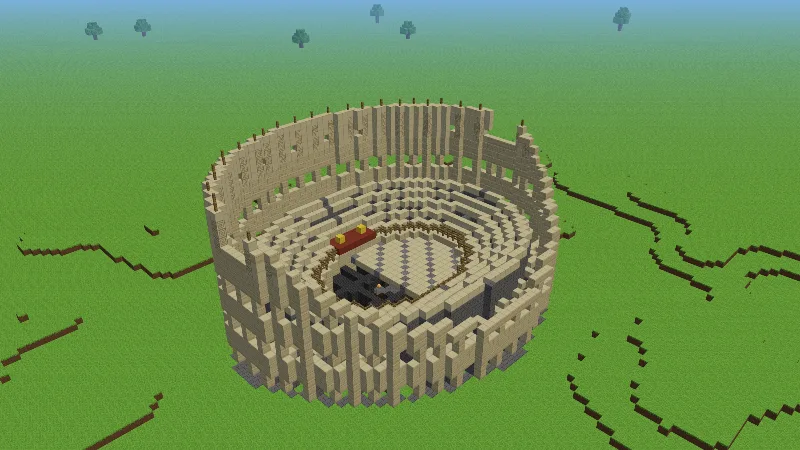
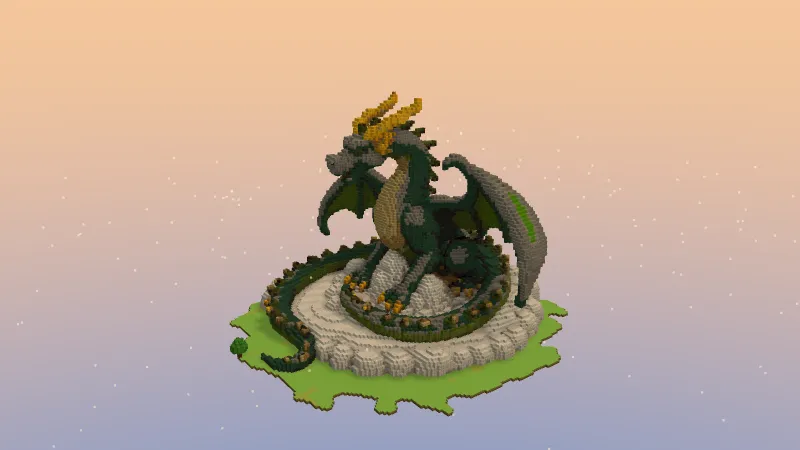
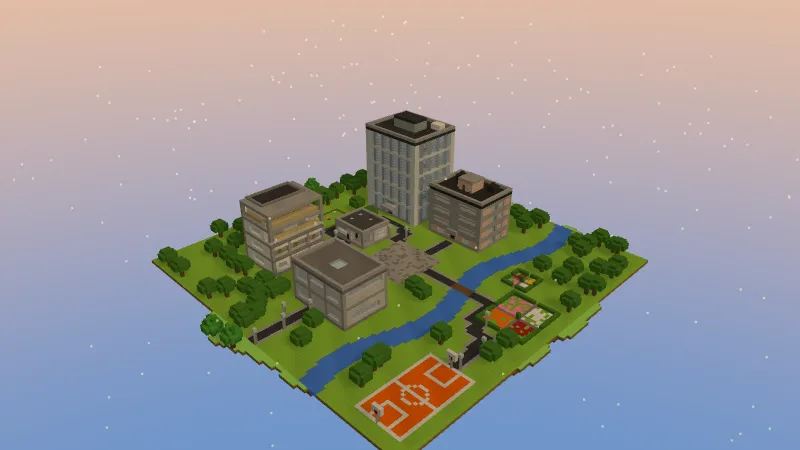
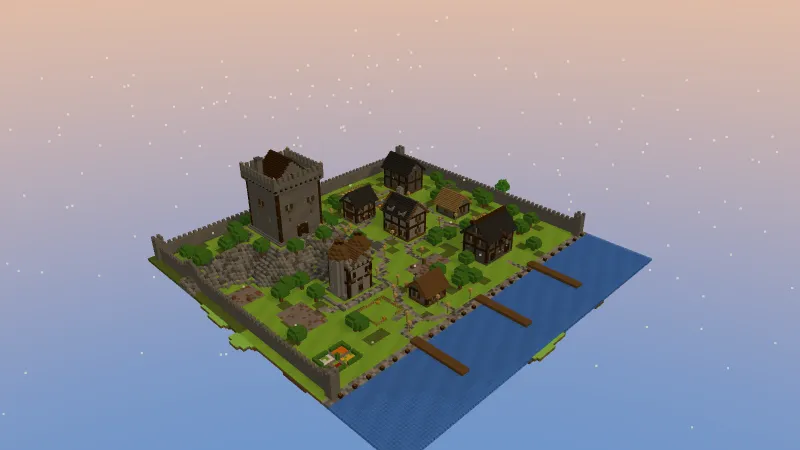
Each opens on its gallery page, where both files download without an account.
Made here
- ✓One Classic building with rooms inside, up to 48 × 40 × 48 blocks and 40,000 blocks in all
- ✓A Detailed 3D statue or creature, the outside only, up to 120 blocks on its longest side, 200 when tall and thin
- ✓A Mega place laid out in parts, such as a village or a castle with its grounds, on a plot up to 128 by 128
Not made here
- –The older
.schematicformat, the one Schematica reads. - –Bedrock files such as
.mcstructure: every file is for Java Edition. - –Structure block and Create mod
.nbtfiles: Create’s Schematicannon loads.nbt, so it can’t use these.
Download, convert, save or generate
There are four other ways to end up holding a schematic. They differ in whose design it is and in what you need before you start.
| Way | Whose design | What you need first | Schematic files | 3D before download |
|---|---|---|---|---|
| Describe it here | Yours, from your words | A sentence and an account | .litematic and .schem | ✓ |
| Download libraries | Someone else’s | Nothing, or an account on some | Whatever the builder uploaded | Rarely on the list |
| 3D model converters | The model’s | A 3D model or a picture | .litematic, .schem and more | ✓ |
| Build it, then //schem save | Yours, block by block | The build standing in a world, and WorldEdit | .schem | Your world is the preview |
| Other AI schematic tools | Yours, from your words | An account, often a plan | Mostly .schem, a few .litematic | ✓ |
A library is the quickest way to a finished build when someone has already made the one you want. When nobody has, the choice is between building it yourself and describing it.
From each kind of tool’s own public pages, October 2026.
Before you download
Does this Minecraft schematic generator cost anything?
No account is needed to download the gallery’s files. Making a schematic of your own takes credits, and an account starts with 1 free build, in Detailed 3D or Classic. Plans and credit packs are on the pricing page.
Is there a Minecraft schematic generator for Bedrock?
No: both schematics are Java Edition files, and Bedrock’s own format, .mcstructure, is not made here. A Bedrock player can still turn the build around in 3D on its page and copy it by hand.
What is the difference between .litematic and .schem?
They hold the same blocks for different mods. Litematica loads the .litematic and shows the build as a ghost to build along; in Creative it can also paste it whole. WorldEdit and FAWE load the .schem into the clipboard and paste it with a second command.
Do generated houses include an interior?
Classic builds do; Detailed 3D builds don’t. A Classic build is a building with rooms, doors, windows and stairs, and may hold furniture, all of it in the file. A Detailed 3D build is carved from a 3D model, so its file holds the outside only.
Can I turn an image or a 3D model into a schematic?
No, nothing is uploaded. You describe the build in words. For statues and creatures the generator draws its own picture, makes a 3D model from it and carves that into blocks.
How long does a schematic take to generate?
At the default quality, a minute or less: usually 20–40 s for a Classic build, about a minute for a Detailed 3D one, which is carved from a 3D model. The file itself is written in your browser when you press download.
Can I edit the schematic afterwards?
Not on this site. Once the file is loaded, Litematica and WorldEdit have their own tools for changing it. You can also change the description and generate again, which is a new build and takes credits again.
How do I make a custom schematic?
Describe it here and download the file, or copy it out of a world with WorldEdit: select the area, run //copy, then //schem save <name>, which writes a .schem into WorldEdit’s schematics folder. Either way you end up with the same kind of file, ready for //schem load.
More: placing a build without mods, every gallery build, credits and plans.