How to Generate Minecraft Builds with AI — Complete Guide 2026
Learn how to generate Minecraft builds with AI: step-by-step tutorial, tool comparison, and prompt ideas. Export a no-mod .mcfunction and place it in-game.
 Block Dreamer
Generating a Minecraft build with AI used to mean a screenshot you couldn't actually place. That's changed: the current tools turn a plain sentence into a real structure — a 3D preview, a material list, and a file you can run in your world in about a minute. This guide is the shortcut through it: which generator to pick, how to go from prompt to placed build step by step, and the prompts worth trying first.
TL;DR: To generate a Minecraft build with AI, describe one structure in plain English, check the 3D preview, and export it. Block Dreamer outputs a no-mod
.mcfunctiondatapack plus a layer-by-layer view you can hand-build from; most others export.schem/.litematicfiles that need WorldEdit or Litematica to place.
Which AI Minecraft build generator should you use?
An AI Minecraft build generator takes a text description — "a round stone watchtower" — and returns a placeable structure instead of just a picture. What actually decides which one you can use is what comes out the other end.
There are two camps. Most generators export a schematic file — .schem, .litematic, or .nbt — which is powerful but only imports through the WorldEdit or Litematica mods. The other camp exports a datapack .mcfunction that runs on any vanilla Java world with nothing installed. On a realm or a server that doesn't allow mods, that one difference outweighs every feature on the list.
| Tool | Price | Output | Needs a mod to place? | Extras |
| ------------------------- | ---------------------------------- | -------------------------------- | ----------------------------- | ---------------------------------------------------------- |
| BlockGPT | Free tier + paid | .schem / .litematic / .nbt | Yes — WorldEdit or Litematica | Wide schematic support, Java + Bedrock |
| BuilderGPT | Free (open source) | .schem (or .mcfunction) | Usually — WorldEdit | Made for map-makers, runs as a dev tool |
| Block Dreamer (this site) | One free build a day; Pro $6/month | .mcfunction datapack | No | 3D preview, layer slicer, block list in stacks, share link |
Full disclosure: that last row is our own tool, so weigh the table with that in mind — where a competitor is genuinely ahead, like BlockGPT's broader schematic support for people who already run WorldEdit, it's worth saying so. We built ours around the no-mod path because that's the wall most players hit first: they generate something great, then learn they can't import a .litematic without a mod their server won't allow. A .mcfunction skips that — drop it in, run one command, done. The second difference is the layer view: a slider that peels the build one Y-level at a time so you can read it like a blueprint. The schematic-only tools hand you a file and stop there, so when the file won't import you have nothing at all, while a layer view still works when nothing else does.
Which camp fits you comes down to one question: can you run mods where you play? On single-player or a server you control, schematics through Litematica are genuinely nice — you get a material list and a ghost overlay to build along. On a Realm, a vanilla SMP, or a friend's server that won't add plugins, a datapack is often the only thing that places anything at all. When you're not sure, the no-mod path is the one that fails less often.
From prompt to placed build, step by step
Here's the whole flow, start to finish, using Block Dreamer as the example — the steps are the same on most tools right up to the export.
Step 1 — Open the generator. No install, and no signup for your first build. You land on a prompt box with a few example chips beneath it. Click any chip to load a finished build straight into the preview without spending a build — the fastest way to see what "good" looks like before you write your own. The gallery has more of them, all free to open.
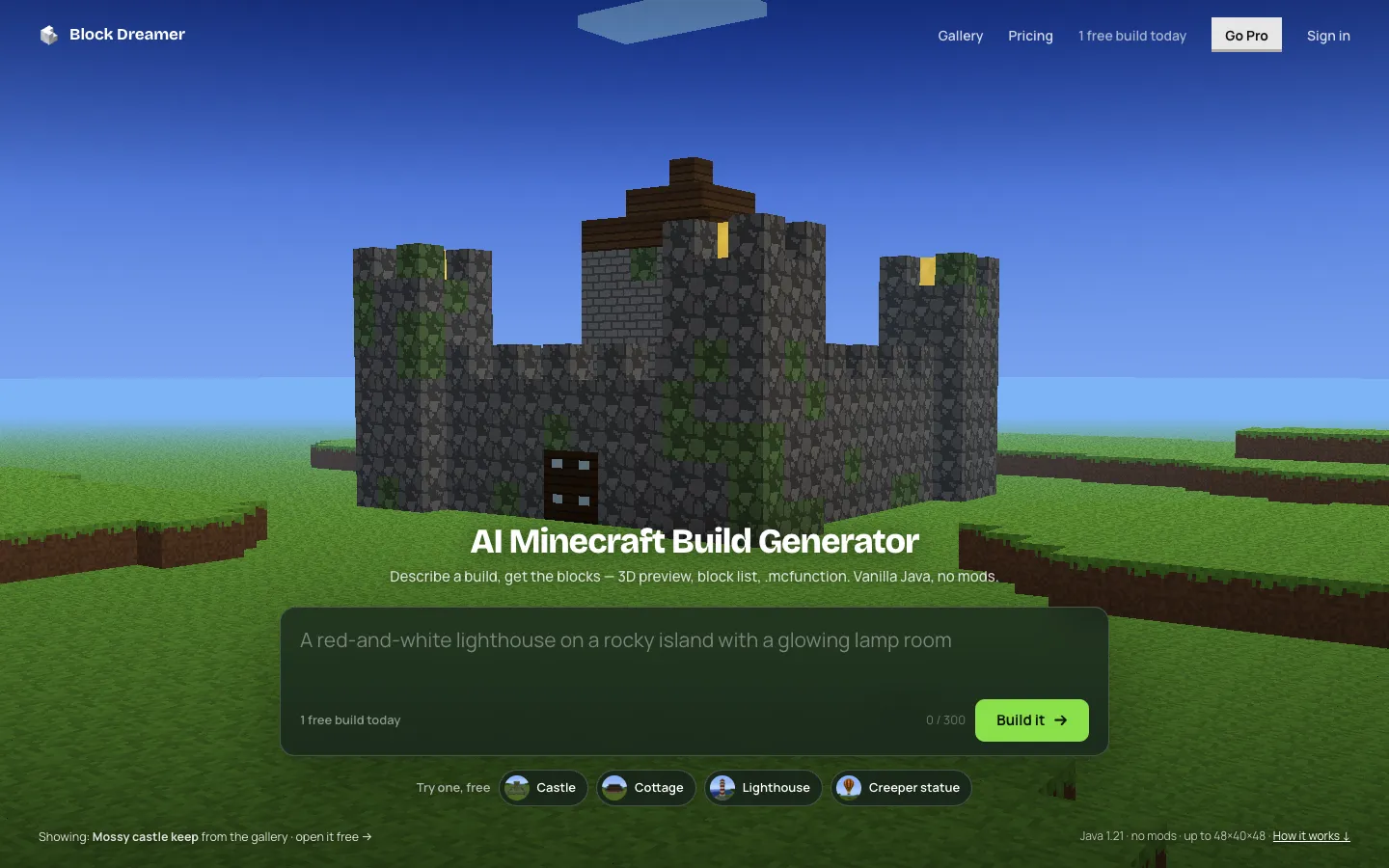
Step 2 — Describe your build. This is the step that decides everything. Describe one structure, and be concrete about form, material, and one or two features: "a round stone watchtower with a glowing top" builds clean; "a village with a market and a harbor" comes back as a cramped miniature, because the generator spreads the build area thin across everything instead of committing to one thing. Vague adjectives — "epic," "detailed" — burn the model's attention without moving any geometry. If the first result is close but off, add one constraint rather than rewriting the whole prompt: "tall and narrow, 5 blocks wide," or "conical roof." "Big cool castle" leaves every decision to the model; "square stone keep, four corner towers, 12 blocks wide" makes three of them for it — form, count and layout. You have 300 characters, and the short, specific prompts use them best.
Step 3 — Generate and preview. The model writes the build from a toolkit of real building parts — roofs, timber walls, arches, round towers, battlements, spiral stairs — and the engine checks every block the game would refuse and repairs it. Usually 20 to 40 seconds later the build appears and stacks up layer by layer, then settles into a 3D view you can orbit and zoom, textured the way the blocks look in game. Beside it, "Blocks you'll need" lists every material with its count and how many stacks of 64 to bring. Spin the build around before you commit to it.
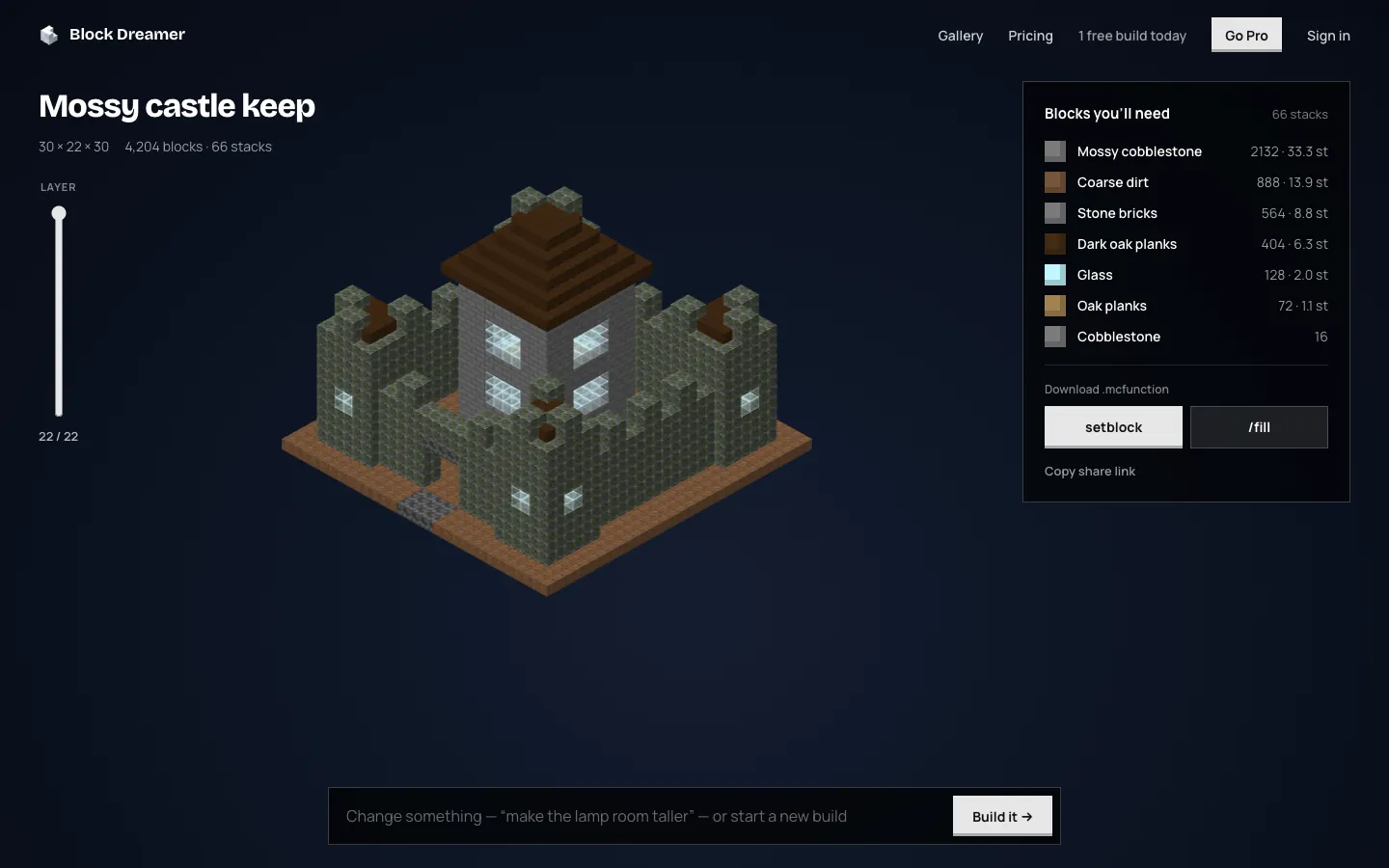
The layer view is the part worth slowing down on. The LAYER slider beside the preview peels the build one Y-level at a time, with a counter showing which level you're on out of the build's full height. Slide into the middle of a castle and the walls turn out to hold real rooms: the generator builds enclosed spaces as hollow shells you can walk into, not solid lumps with a decorated surface. Slicing through before you export is also how you catch the things a spinning preview hides — a roof that overhangs further than you wanted, a doorway that never got carved, a floor that isn't there.
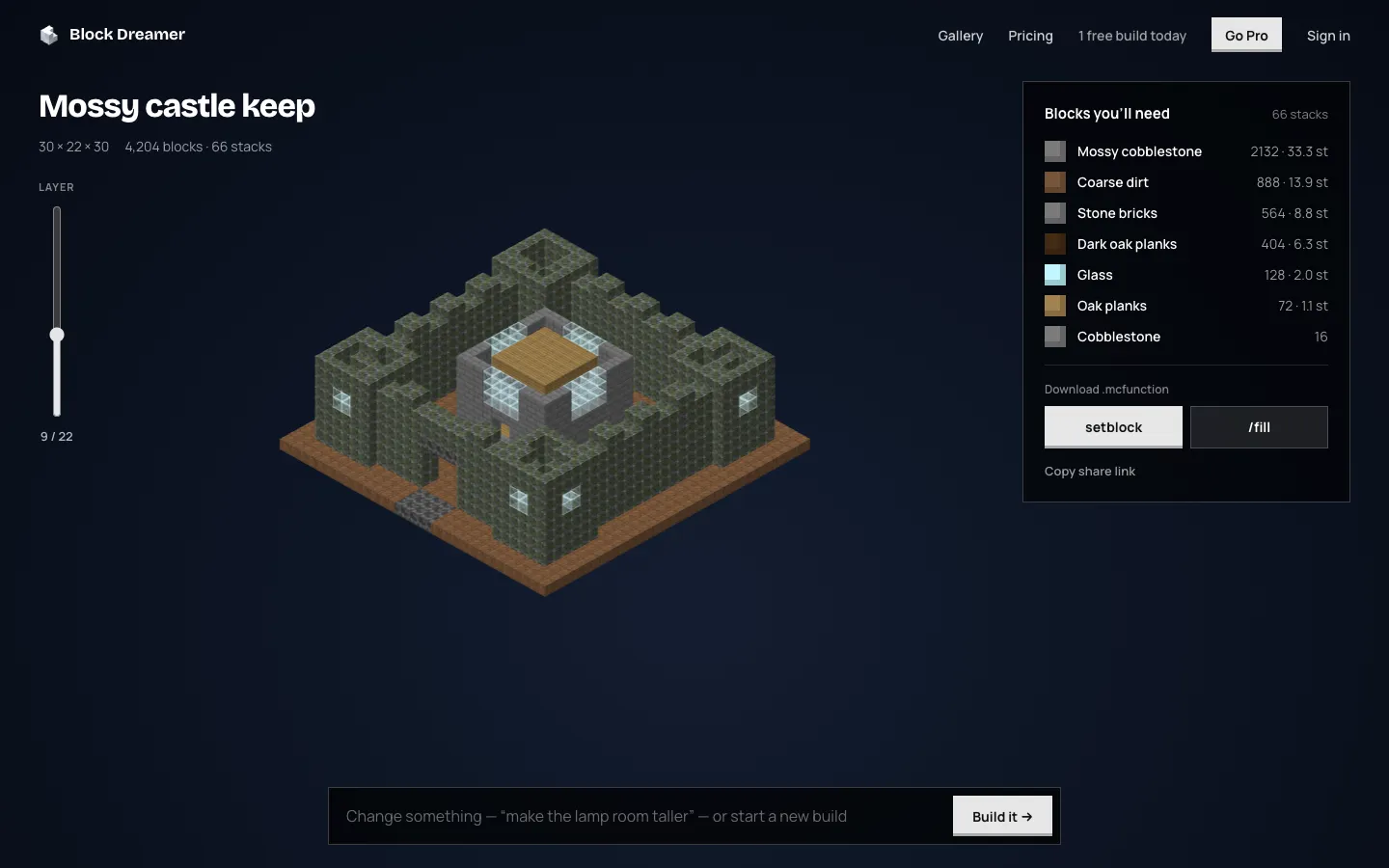
Step 4 — Export the .mcfunction. When the shape matches what you pictured, download the command file. It comes two ways: setblock (one command per block — easy to read and hand-edit) and /fill (merges runs of the same block, cutting the command count several times over on regular shapes). Use /fill unless you specifically want to tweak individual blocks. There's no schematic and no mod here — it's a plain datapack function.
Step 5 — Place it in your world. Drop the file in your world's datapacks/<pack>/data/<namespace>/function/ folder (Java 1.21 renamed it from functions/), run /reload, stand where you want the center of the build at ground level, and run /function <namespace>:<name>. Everything places relative to you. On Bedrock, where datapack functions don't exist, the layer view and the block list are how you build it by hand — same blueprint, placed one level at a time. Two things trip people up here: the file has to live in a world's own datapacks folder rather than the global one, and /function won't autocomplete until you've run /reload first. If the command comes back red, it's almost always the reload you skipped.
Six build ideas worth generating first
The quickest way to learn what the generator does well is to run a few builds that play to its strengths — single, compact structures that fit within 48 blocks a side and 40 tall. Six prompts worth starting with:
- Round watchtower — "a round stone watchtower with a glowing top." One clear shape that reads instantly, a good first generation. Drop it on a wall corner or a hilltop and it earns its place right away.
- Japanese pagoda — "a three-tier pagoda with upturned roofs, dark wood and white walls." Stacked and symmetrical; tiered roofs are exactly what the roof parts are for.
- Desert pyramid — "a stepped sandstone pyramid with a torch-lit entrance." Pure geometry, which is where a generated build looks sharpest.
- Underwater glass dome — "a glass dome habitat on the sea floor." Comes back as a clean hemisphere shell — a solid base you then fit out and light.
- Stone gateway — "a fortress gatehouse with two towers and a central arch." Compact and functional — a great drop-in wherever a base wall needs an actual entrance instead of a hole you jump through.
- Steampunk airship — "a small steampunk airship with a wooden hull and a balloon." Proof it isn't only for buildings; keep it small and it holds together, and it parks over a base as a set piece nicely.
What the generator won't do
Three limits are worth knowing before you spend a build discovering them.
Scale turns into a miniature. The six ideas above all work because each one is a single compact structure. Every build fits a 48 × 40 × 48 space, so ask for a whole city, a giant tree village, or a sprawling skyscraper and you get a detailed miniature — impressive to look at, not something you can walk through. One structure per prompt is the rule that pays off.
No redstone. Doors, lanterns and furniture, yes; circuits, pistons and command-block contraptions, no. The generator builds things to look at and walk through, not machines.
.mcfunction only. There's no .schem or .litematic export. If your workflow runs through WorldEdit or Litematica already, a schematic tool will slot in more easily; the function file is for placing a build with nothing installed.
Frequently asked questions
Is the AI Minecraft build generator free?
Yes. Block Dreamer gives you one build a day, no signup needed, which is enough to be useful and small enough that we can keep it free while every run costs us a model call. Every gallery build is free to open without touching that allowance — 3D preview, layer view, block list, and the .mcfunction download all work on them. Open two or three of those first and you'll know what to ask for when you spend your one. Pro ($6 a month) adds 100 builds a month, each one reviewed and revised, plus statues and creatures.
How big can an AI-generated build be?
Up to 48 blocks wide and deep and 40 tall. At that size a watchtower, gatehouse, or dome comes out at playable scale, big enough to walk into. Ask for something far bigger and it comes back fitted into that space, which is how "a huge castle" ends up a tabletop model.
Do I need a mod to use an AI-generated build?
Not with a .mcfunction — it's a vanilla datapack you drop in, /reload, and place with one command. You only need WorldEdit or Litematica if the tool you used exports a .schem or .litematic file instead.
Does it work on Java and Bedrock?
The .mcfunction commands are Java-only (setblock/fill with ~ coordinates). On Bedrock, build from the layer view and the block list by hand: pick a Y-level, gather the blocks it lists, place that level, move up one.
How is this different from WorldEdit?
WorldEdit is a manual mod — you sculpt shapes yourself with //sphere, //cyl, and the like. An AI generator writes the whole structure from a description, and the .mcfunction places it with no WorldEdit involved. They solve different problems.
Bring an idea, get a build
You don't need to be a redstone engineer or a WorldEdit veteran to generate a Minecraft build anymore. Describe one clear structure, check the preview, export the .mcfunction, and run a single command — the AI does the block-by-block part while you make the calls that matter. Pick a prompt from the list above, run it through the AI Minecraft build generator, and build from there.